|
|

Because of the functions provided with the Windows API, capturing the screen to the Clipboard becomes a relatively simple task. This tutorial assumes that you have some knowledge of Visual Basic and an understanding of the Windows environment. In the sample code that complements this tutorial, the following calls have been added directly to the Sub Main procedure. However, your application does much more, and you will have identified a more suitable place to add these. 1. Before we start making API calls in Sub Main, we must add the following function declarations and constant definitions: 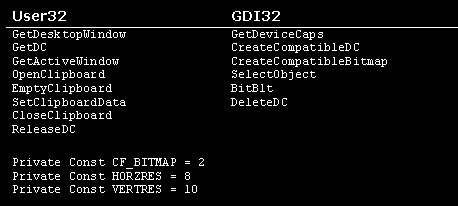
2. Onto our Sub Main procedure - Get the Desktop handle by calling GetDesktopWindow. Now, we can get the device context of the Desktop by calling the GetDC API. 
3. We can now determine the screen dimensions. 
4. Next, we create a compatible memory context and bitmap. 
If this was successful, hBitmap should not be NULL, i.e. "if hBitmap" should evaluate to true. 5. Assuming step 4 was successful, we can select the bitmap into the memory context we just created. 
6. Next, we copy the Desktop to the memory device context. 
7. The clipboard - open, clear, copy, and close. 
OK, not so fast. We opened the clipboard providing the handle to our application window. When we emptied the Clipboard, we both cleared it's current contents and temporarily took ownership of the Clipboard. We placed the bitmap data onto the Clipboard by specifying the data type with CF_BITMAP and providing a handle to our data. Then, we released ownership of the Clipboard. 8. Finally, we cleanup by deleting the memory context and releasing the device context. 
The completed procedure is as follows: 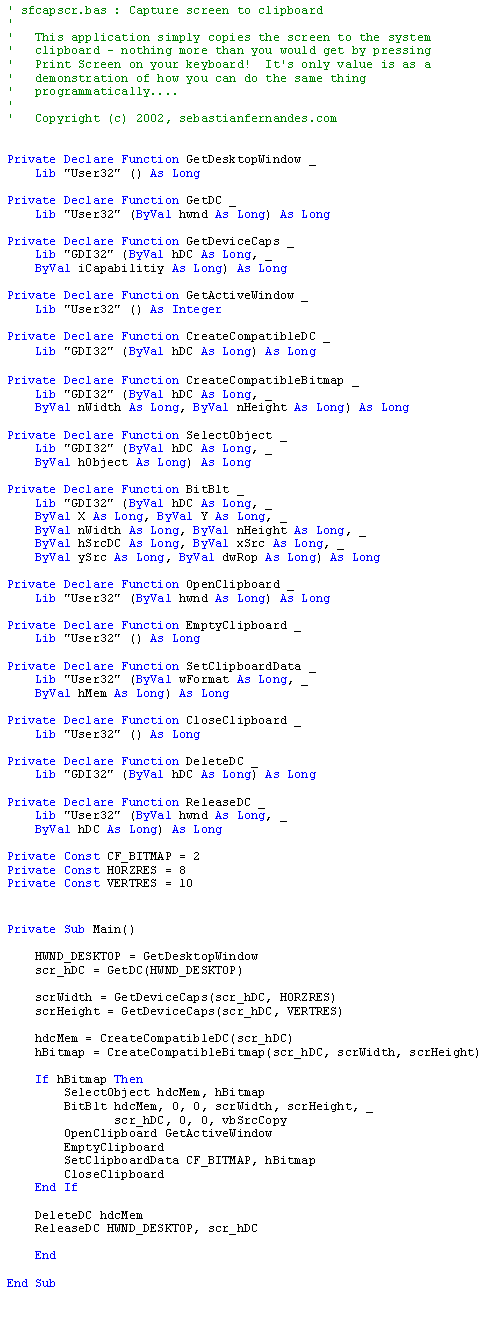
|
 |
| Copyright © 2001-2005 sebastianfernandes.com | Terms of Use |
|
|