1. Disabling Error Reporting (Microsoft® Windows XP)
With Windows XP, Microsoft introduced the Send Error Report function to gather information
about any errors encountered in the event of a system or application crash. More often than
not, however, people opt not to send the report and these dialog boxes just become an annoyance.
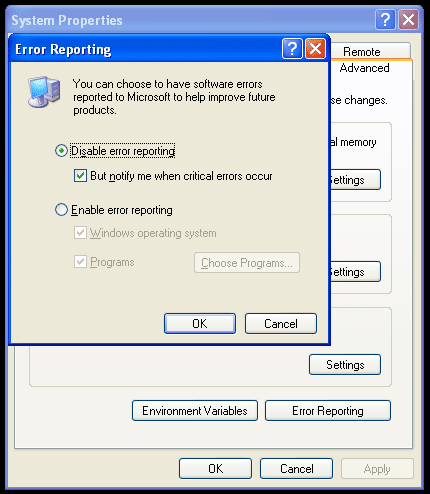
To disable this feature, open the System Properties applet by right clicking the My Computer icon
and selecting Properties, or from the Control Panel (note that this will be under Performance and Maintenance
if you are in Category View). In the System Properties applet, open the Advanced tab and choose
Error Reporting. From here, you can disable or re-enable this feature.

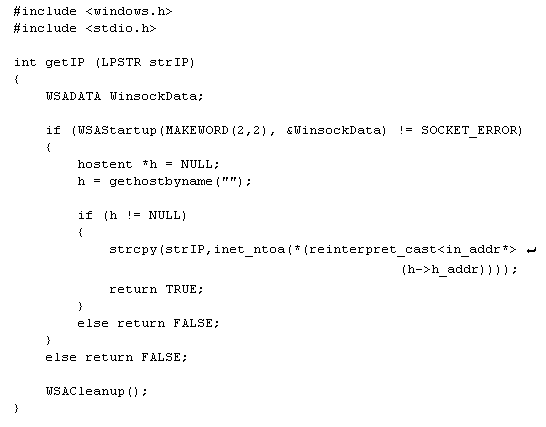
2. Determining the machine's IP address (C++)
 Download [ZIP 389 bytes]
3. Disabling the Thumbs.db thumbnail cache (Microsoft® Windows XP)
With Windows XP, some folders are displayed using the Thumbnail view and the system creates a Thumbs.db file for that folder.
Sometimes Windows uses this Thumbnail view wherever it finds a Thumbs.db file, regardless of what default folder view
preferences you may have set. Removing the Thumbs.db file resolves this, but Windows will often regenerate this file for
these folders.
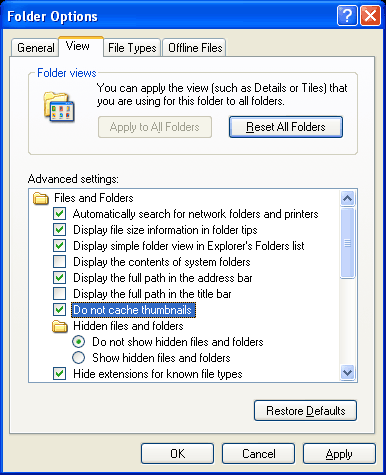
To disable this, open the Folder Options applet from the Tools menu of any open folder, or from the Control Panel
(note that this will be under Appearance and Themes if you are in Category View). In the Folder Options applet, open the
View tab and check "Do not cache thumbnails".
4. Reading CGI environment variables (Perl)
Download [ZIP 233 bytes]

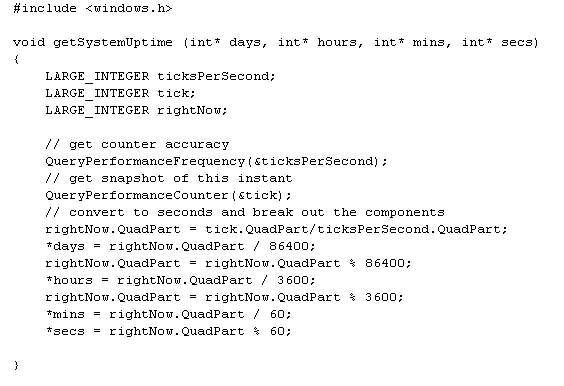
5. Determining the system uptime (C++)
Download [ZIP 428 bytes]
6. Disabling the Low Disk Space warning (Microsoft® Windows XP)
With Windows XP, a balloon tip warning will be issued periodically whenever space is low on disks connected to your system.
There may be circumstances, however, when a given disk is intended to have little unused/wasted disk space and where
you will not be adding or removing files - system recovery partitions, for example - and these warnings just become an annoyance.
To disable this, we will need to open the system registry. (Manipulating the system registry is dangerous, so if you
do not know how to open the registry, navigate the hives, add or delete keys, understand key data types, etc, DO NOT DO
THIS!) Modify DWORD value NoLowDiskSpaceChecks under Software \ Microsoft \ Windows \ CurrentVersion \ Policies \ Explorer
under both the HKCU and HKLM hives. The default value is 0. Use 1 to disable messages and, of course, 0 to enable messages
again.
|