|
|

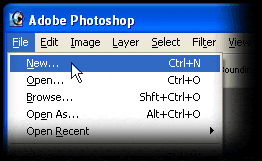
1. Create a new image document.
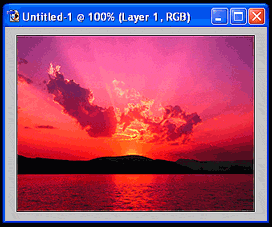
2. Select the image that you would like to use as a base and paste it onto your blank canvas.
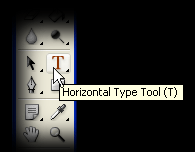
3. Select the type tool and position the cursor onto your base image.
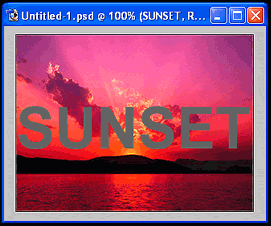
4. Type your intended text. Choose a font, font point size, and a neutral hue like gray. (Grays are actually shades of white - or tints of black). Wider and/or bold fonts generally look better, and a suitable shade might be a medium gray (e.g. Hex #666666, RGB 102,102,102, CMYK 60,51,51,20).
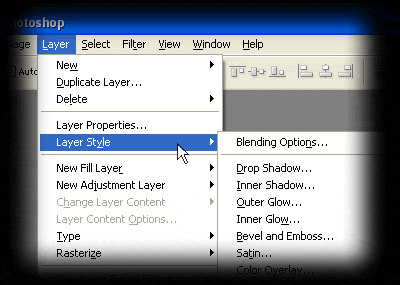
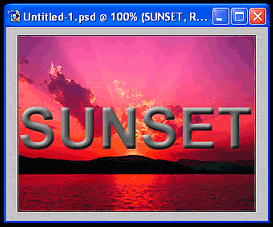
5. Add a Layer Style to your new text layer. Select Bevel and Emboss.
6. The default Bevel and Emboss settings are a good starting point, but experiment with these settings to refine your desired effect.
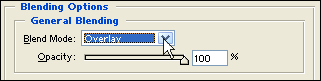
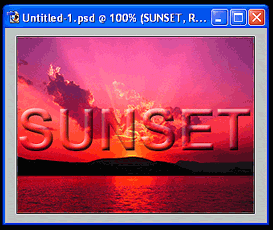
7. Select Layer Style again, as in step 5, and choose Blending Options. Set the blending mode for the text layer to overlay.
8. ... And you are done!
|
 |
| Copyright © 2001-2005 sebastianfernandes.com | Terms of Use |
|
|